Guide For Clinics
The CMx Workmed user guide for clinics.
User Guide for Clinics
The user guide is split up into sections below. Note that as different users can have different roles, not all staff and practitioners need to read this whole guide.
The initial setup tasks are things that only need to be done once such as setting up your clinic details and staff accounts, or done occasionally such as adding clients. Completing these tasks will allow CMx Workmed's automation to take over and make routine actions a breeze.
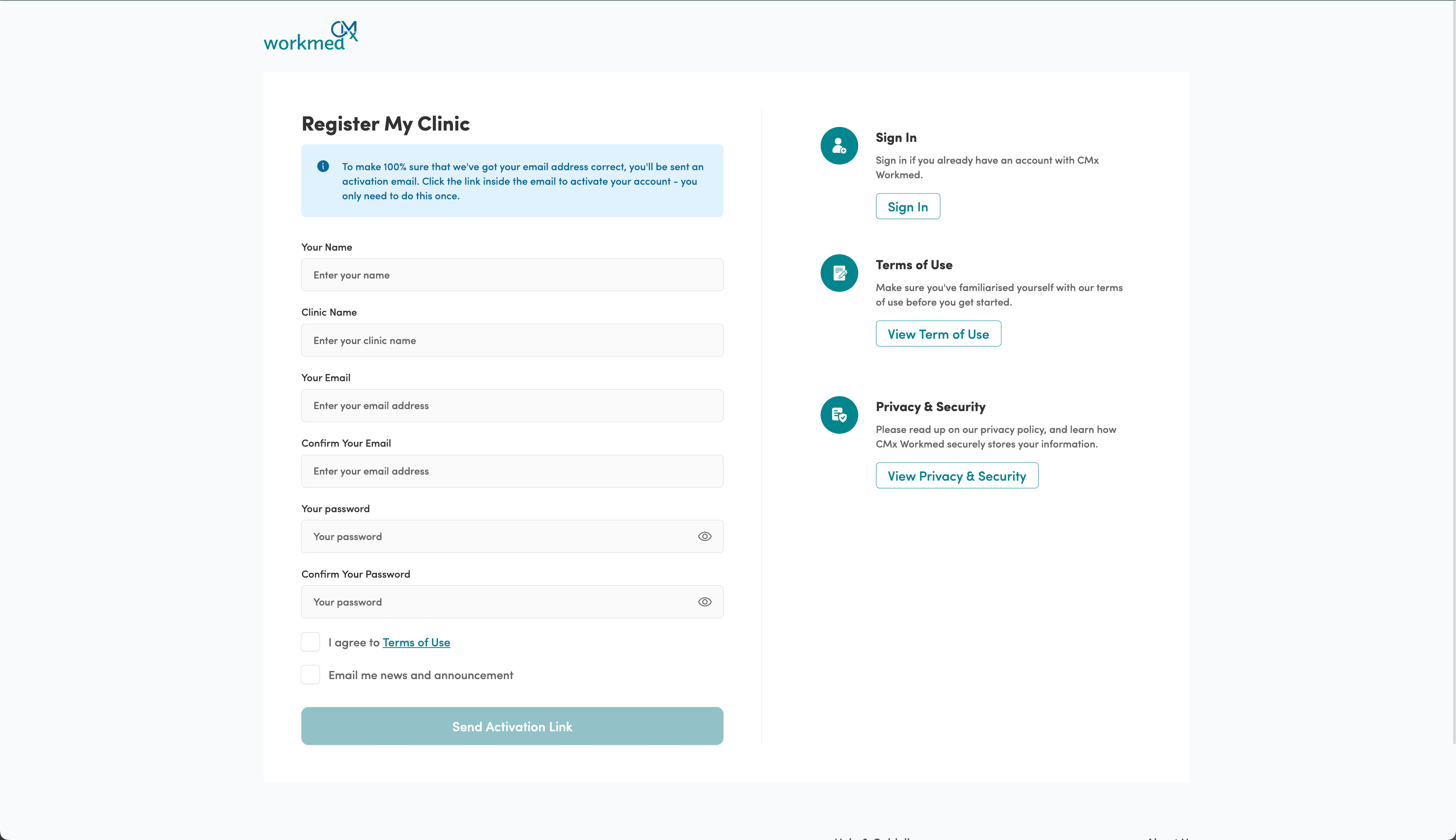
Registering Your Clinic
To get started with CMx Workmed you must first register your clinic. This is done from the Register page and begins by asking you to create an account for yourself as the Clinic Administrator. Your account will have complete permissions to manage your clinic on CMx Workmed going forward, though this can be changed later.
Once registered, you will be sent an activation email containing a link which you must follow to activate your account. Once activated, your 30-day free trial will begin and you can get started! The very first thing to do is to fill in your clinic's details. Bookings cannot be made until the email address, phone number and street address have been added to the My Clinic page.
User Profiles
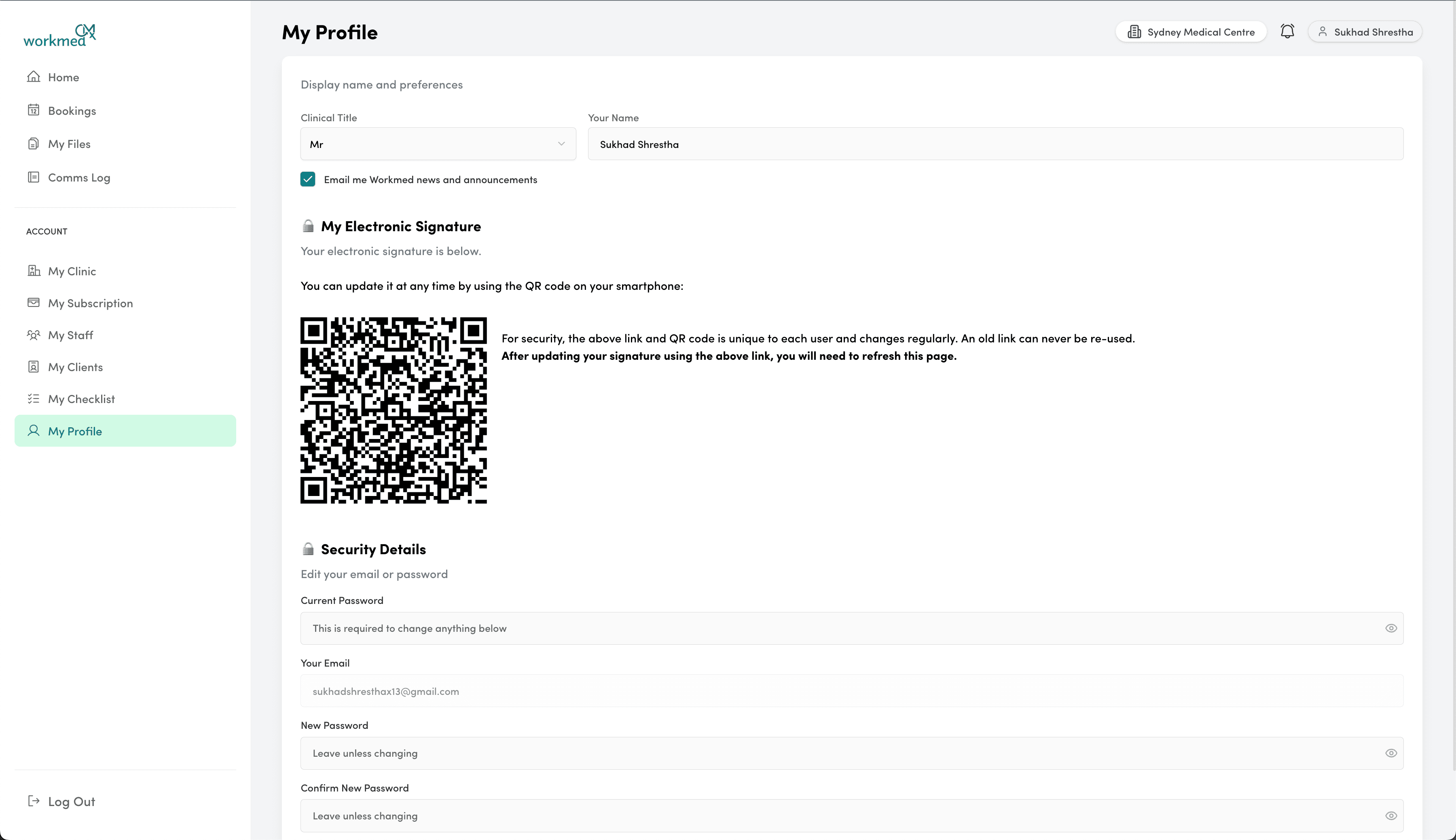
User Accounts & Roles

There are four different roles for clinic users on CMx Workmed, each with its own set of permissions to ensure candidate privacy and data integrity:
Clinic Administrator:
At least one administrator account is required to maintain an account on CMx Workmed. This may be the principal doctor, head receptionist, practice manager, or workplace health team member. Clinic Administrators can manage clinic user accounts, client accounts, finalise medical reports, upload extra files, and manage the clinic's CMx Workmed subscription on top of all of the other abilities in the roles below.Clinical Assessor:
Usually a doctor, a Clinical Assessor is the only role aside from an administrator who can add an electronic signature and thus complete a clinical assessment for a candidate. They will often also do the basic physical portion of a candidate checklist, and may also enter observation data in smaller clinics without nursing staff.Clinical Observer:
Usually a nurse, a Clinical Observer is able to enter clinical observations for the candidate checklist, as well as view all medical information that the candidate has submitted via the online health survey. They can also perform the basic physical, but not the final clinical assessment.Clinic Staff:
Usually a receptionist, clinic staff are the lowest permission level in CMx Workmed. They can only view basic information about a candidate such as their booking date/time, birth date, and contact details. They can check photo ID if this is required at the front desk, but cannot view any medical information.
Whether you need to use each role will depend on the size and structure of your clinic. A small clinic may wish to just give administrative permissions to all users to simplify use and share workload. Once assigned, you should ask the users to add https://cmxworkmed.com.au as a bookmark in their web browser, or add a shortcut on their desktop for easy access.
Adding a Client / Employer
Each employer therefore needs a client account. To create a client account, a Clinic Administrator can go to the My Clients page. User accounts can be created with a name and email address, with each one being assigned either to an existing company or to a new company whose name can be specified.
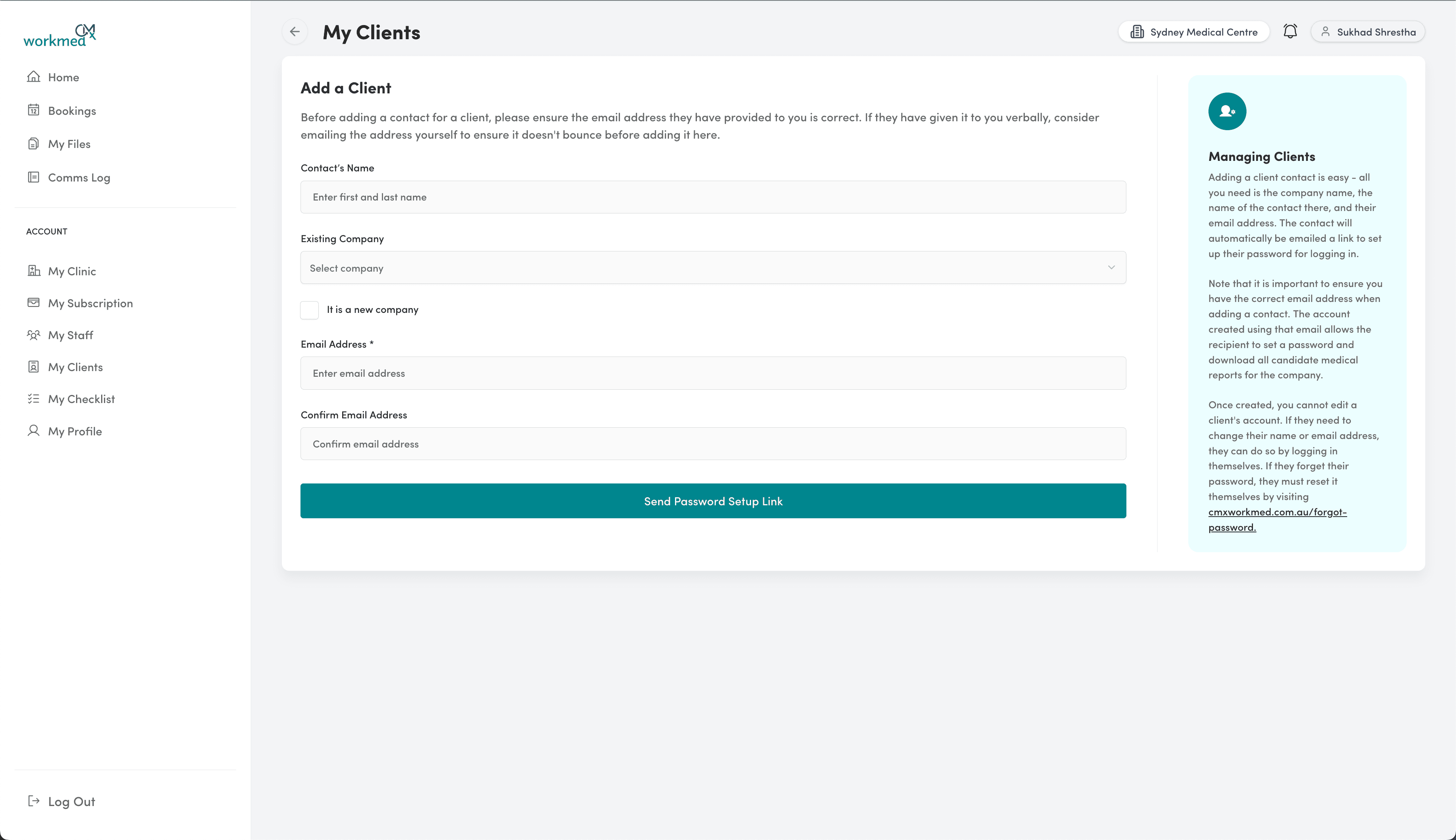
Once an account has been made, they will receive an email containing a link for them to set a password and log in. The clients you create will each appear as a selectable option when booking in a new candidate, so the employee-employer association is made in the system. A client will receive email notifications whenever:
- A new medical assessment is booked for their candidate at your clinic
- An assessment is rescheduled or cancelled by your clinic
- A finalised medical report is ready for download
- Any other files uploaded by your clinic are available to download
Creating a Checklist
- Candidate fills in their personal details and employment history
- Candidate fills in their online health survey
- Candidate signs a declaration
- Clinic staff check the candidate's photo ID on arrival
- Clinic staff or practitioners enter observation data
- Clinic staff or practitioners enter basic physical data
- Clinic staff upload any attachments such as device readouts or test results
- A practitioner fills in the clinical assessment using all the above information
- A clinic administrator finalises the assessment for the client to download
Some of the above steps are optional, while some happen for every medical. Rather than specifying which parts to include for every single candidate, CMx Workmed utilises checklists which can be pre-configured and then quickly selected for suitable candidates when bookings are made.
Each checklist has a name (which your clinic users see), and a Report Title which is put on the final medical report for the client to see. While the former may be shorthand for your clinic, the latter is a formal title. The Description field is for internal clinic reference only, and is not seen by clients or candidates.
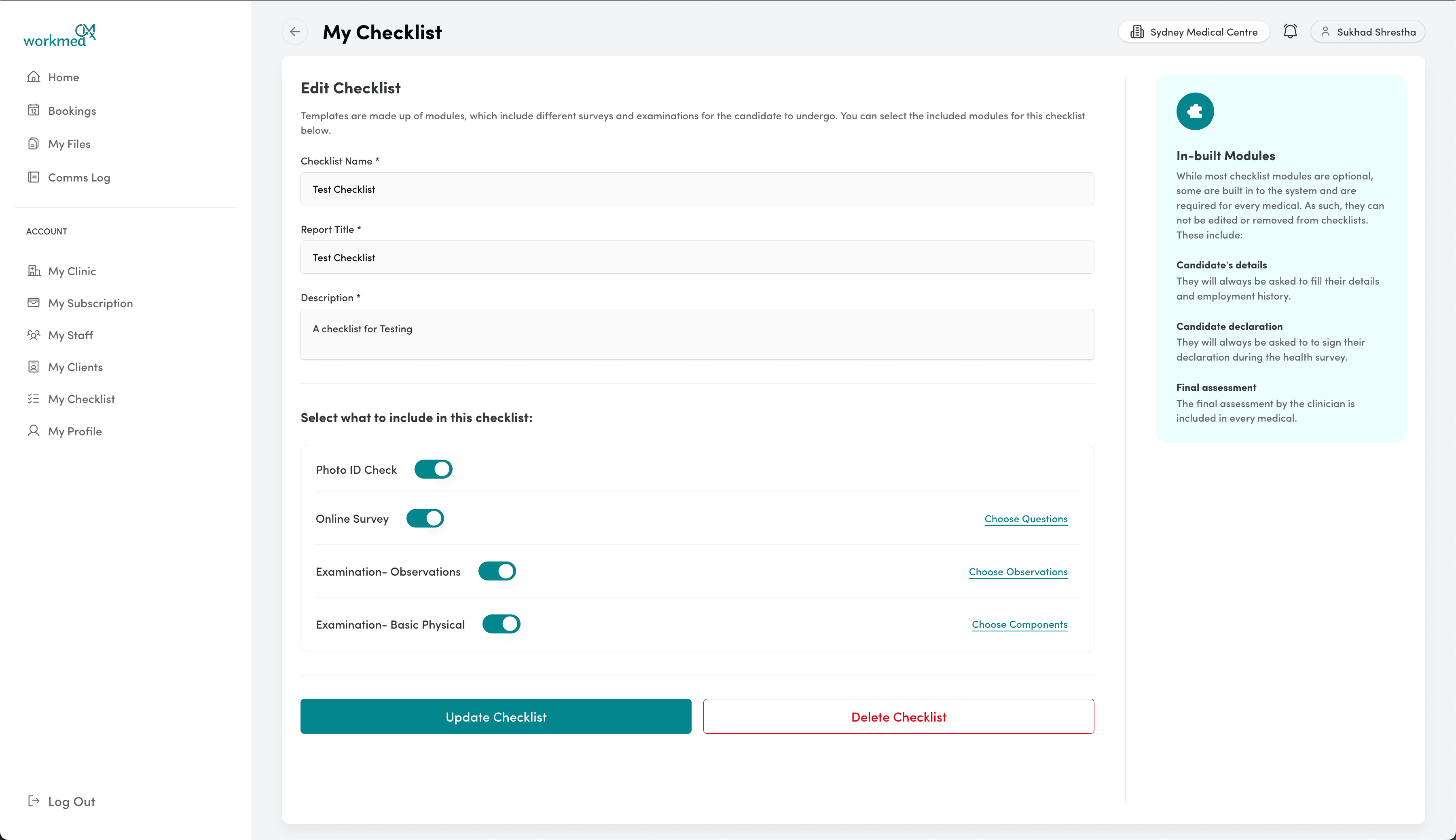
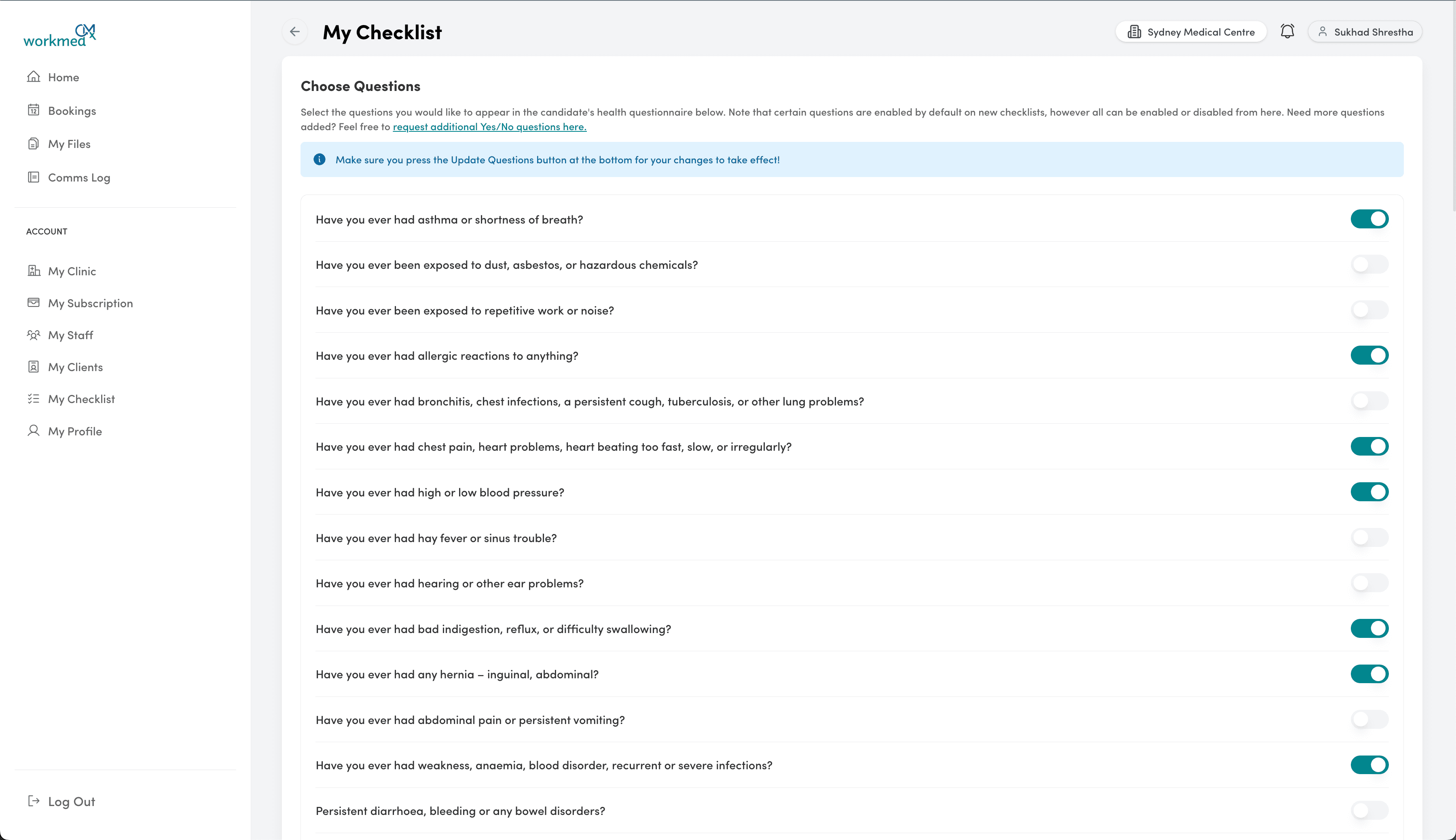
Beyond this, you can select the individual components of each module that is included. For example, you can select which individual questions to include in the health survey. You can select which specific observations you wish clinicians to complete, and you can select which tests to include in the basic physical. This allows you to create checklists which are individualised for the needs of particular clients, or just set standards for your own clinic.
Booking a Candidate
- Obtain the mobile number and date of birth of the candidate
- Add a note to the appointment in the system that this medical will be done using CMx Workmed .
- Add the candidate booking into CMx Workmed .
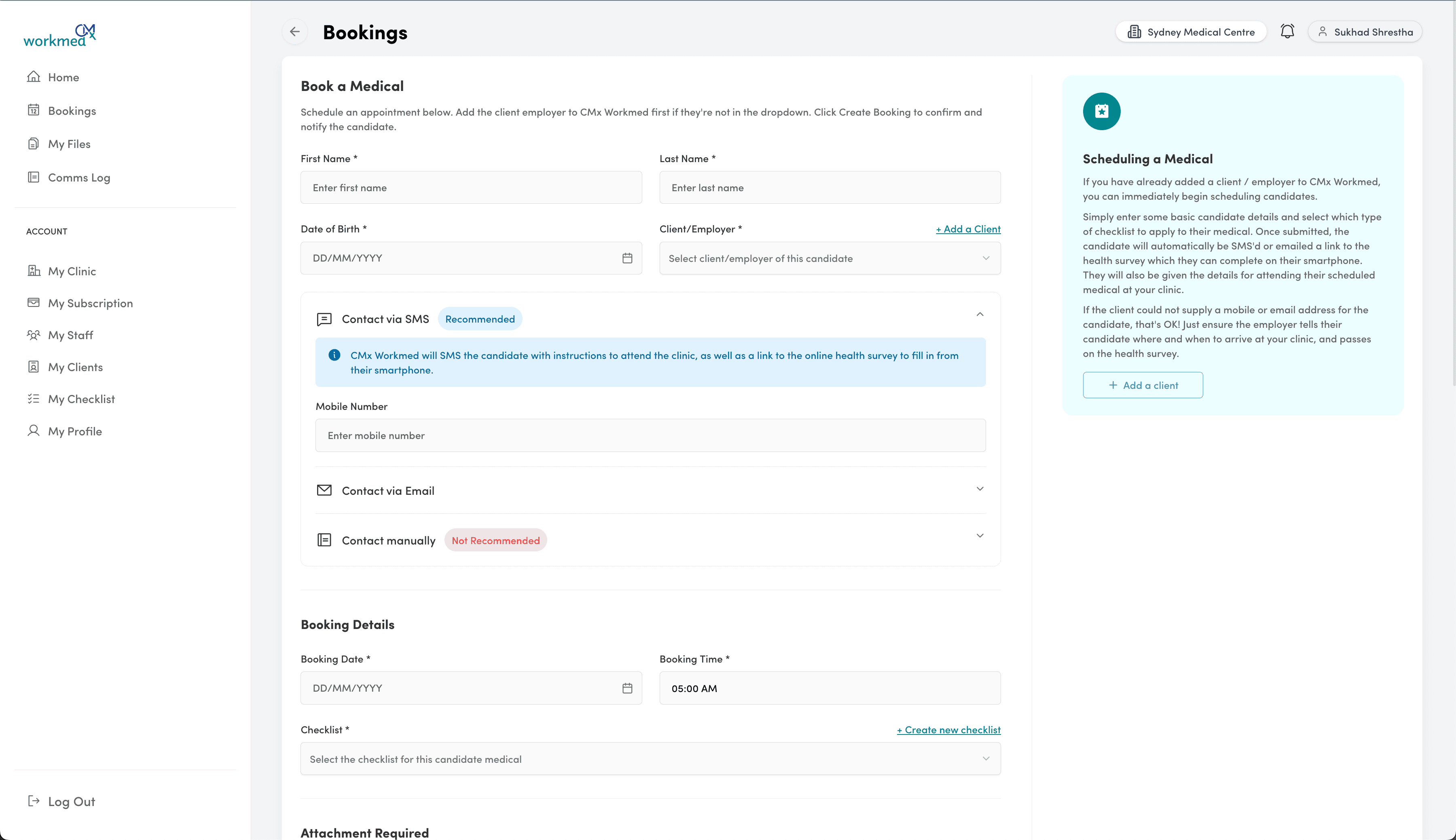
To add a booking into CMx Workmed , simply head to the New Booking page and start entering their details. You will need to have added the employer previously for them to be selectable on this page.
As well as selecting the checklist you'd like to use, you can also add any particular attachments that need to be appended to this report. These may be device readouts or other reports relevant to the assessment, and will become part of this candidate's checklist. Finally, you can also add any additional notes which all staff can see on this candidate's page.
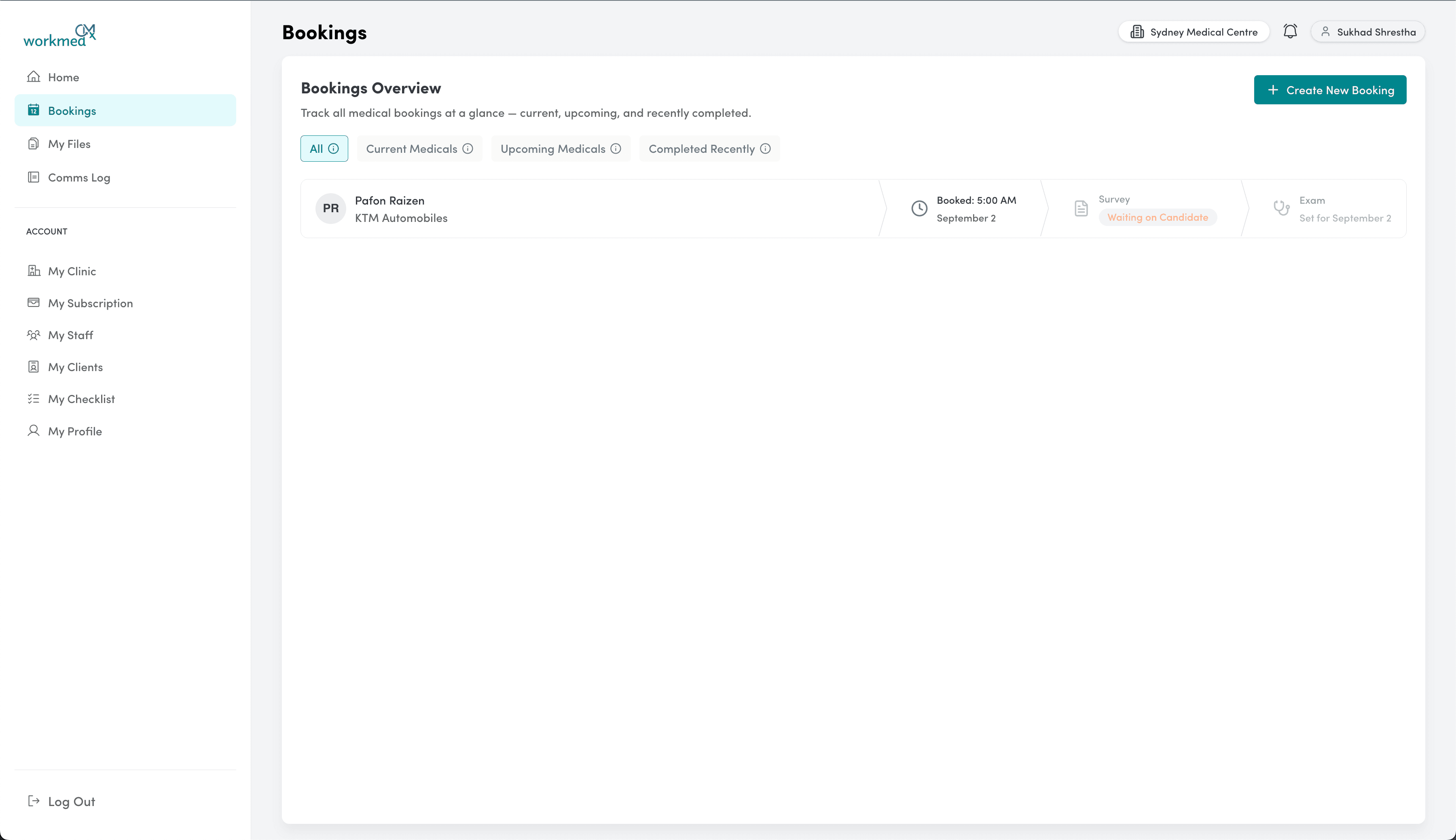
If a client was selected, the contact(s) at that employer will also be emailed a notification advising them of the booking. If you cancel a booking, you can choose whether the candidate or client (or both) are notified, using the designated contact methods (SMS or email).
If you make a mistake with a candidate's mobile number or email, you can edit their booking and change these - a new notification will be sent to the candidate. If you change the date or time on an existing booking, the candidate and client will also be notified of the change automatically.
The Clinic Administrator can view all outgoing SMS and email communications to candidates and clients via the Comms Log page.
Processing a Medical
- Candidate fills in their personal details and employment history
- Candidate fills in their online health survey
- Candidate signs a declaration
- Clinic staff check the candidate's photo ID on arrival
- Clinic staff or practitioners enter observation data
- Clinic staff or practitioners enter basic physical data
- Clinic staff upload any attachments such as device readouts or test results
- A practitioner fills in the clinical assessment using all the above information
- A clinic administrator finalises the assessment for the client to download
While the dashboard gives an overview of the clinic as a whole, clicking on a single booking entry will show what that booking is up to as part of the above process. Completed sections will be marked with a green tick.
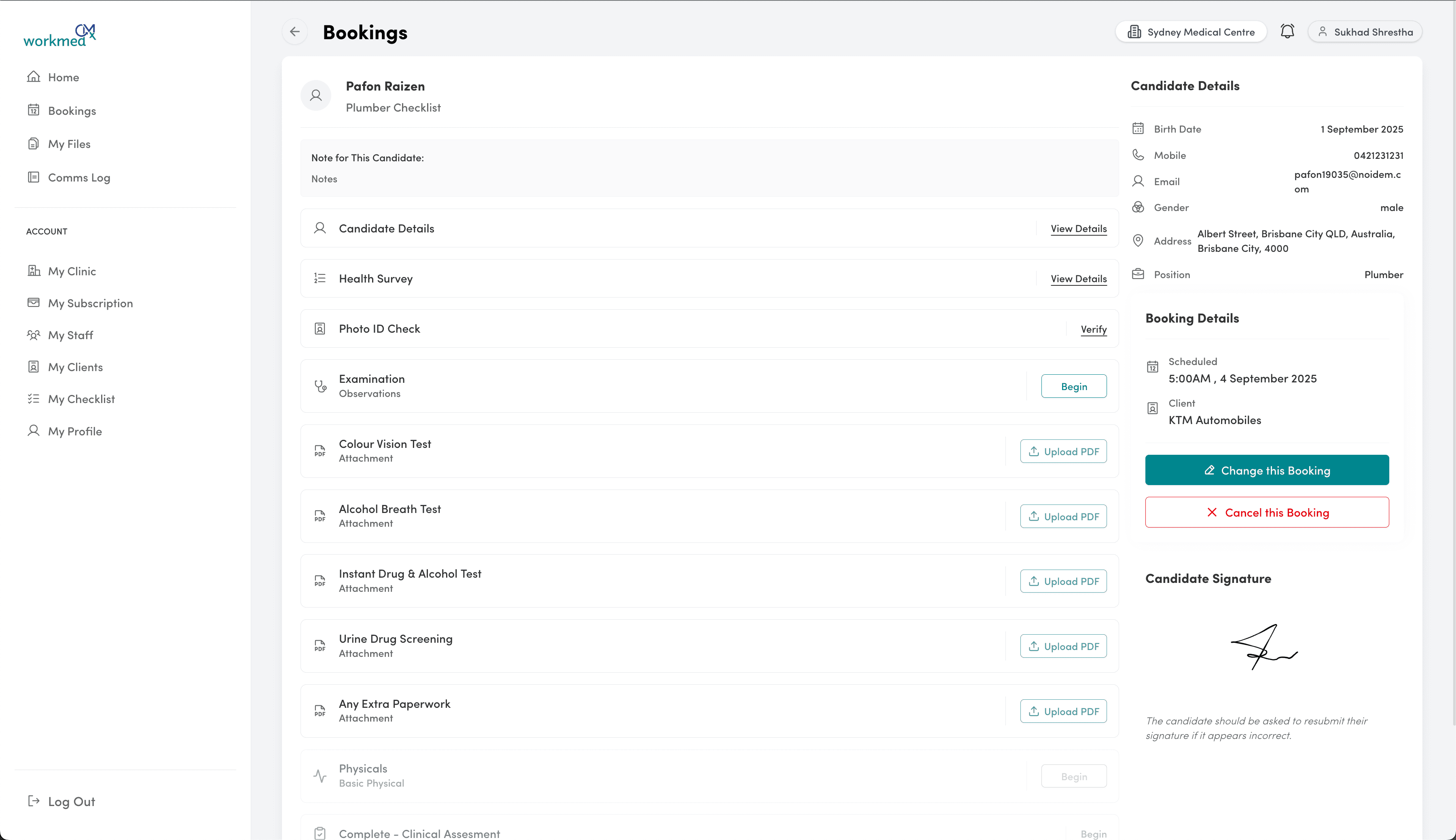
How your clinic chooses to process a candidate's medical using the checklist is up to you, including how you assign staff and practitioners. CMx Workmed gives a wide berth for clinics to do things their way.
Clinical Assessments
To complete an assessment, the assessor enters 3 findings after reviewing the information:
- The overall degree of physical fitness for the candidate
- The overall risk level of the candidate for the work/position
- Any other final remarks (optional)
The risk level system provides clarity to the employer while reducing liability and potential complaints to the clinic. It does this by avoiding any wording that specifically identifies the candidate as being unsuitable for a role, leaving that particular decision very clearly with the employer.
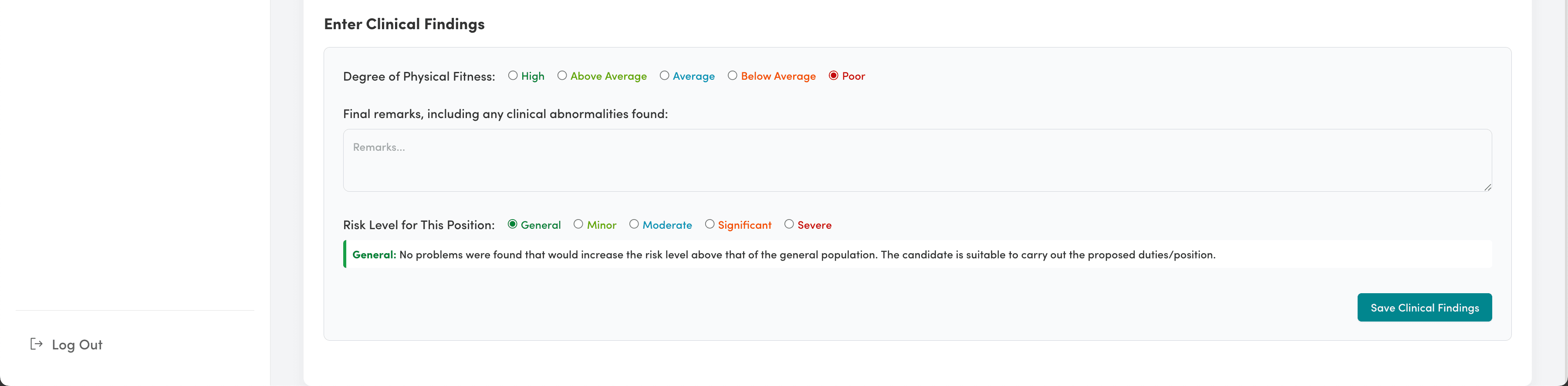
A completed medical assessment is now ready to be finalised by the Clinic Administrator so that it can be prepared for downloading by the client.
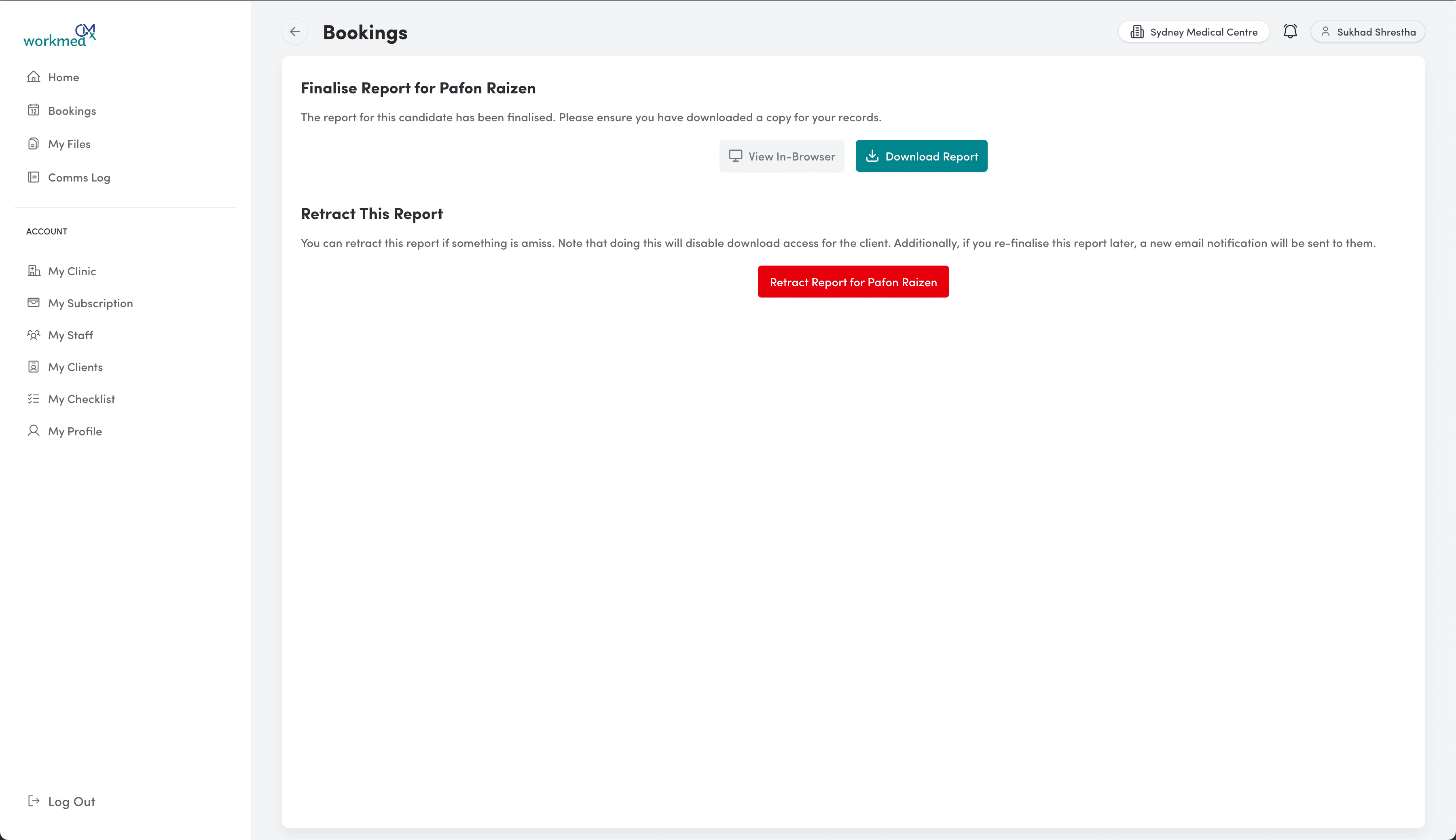
Finalised Reports

The final step in the process is to finalise the report. By pressing the Mark Report as Finalised button, the PDF will become available as a download for the client. They will be immediately emailed a notification asking them to download the file for their records.